Gyro Air G-700Pro: Screen Not Receiving Power — Fuse Inspection & Replacement

Created by Gabriel Izzo, Modified on Thu, 14 May at 11:56 AM by Gabriel Izzo

Gyro Air G-700 Pro · Troubleshooting
Screen Not Receiving Power — Fuse Inspection & Replacement

If the G-700 Pro control screen is not powering on and the machine is confirmed to be receiving the required 208V–240V input power with the screen properly connected to the power supply wiring, the issue is most likely related to one or more of the internal control fuses.

⚡ Warning — Electrical Hazard
Risk of electric shock, serious injury, or death
+
Disconnect the machine completely from power before opening the electrical box.
+
Allow several minutes for internal capacitors in the VFD to fully discharge before touching any components.
+
Never work inside the electrical box while the machine is plugged in or energized.
i
If you are not comfortable working around electrical components or using a multimeter, consult a qualified electrician or technician before proceeding.
Fuse Locations

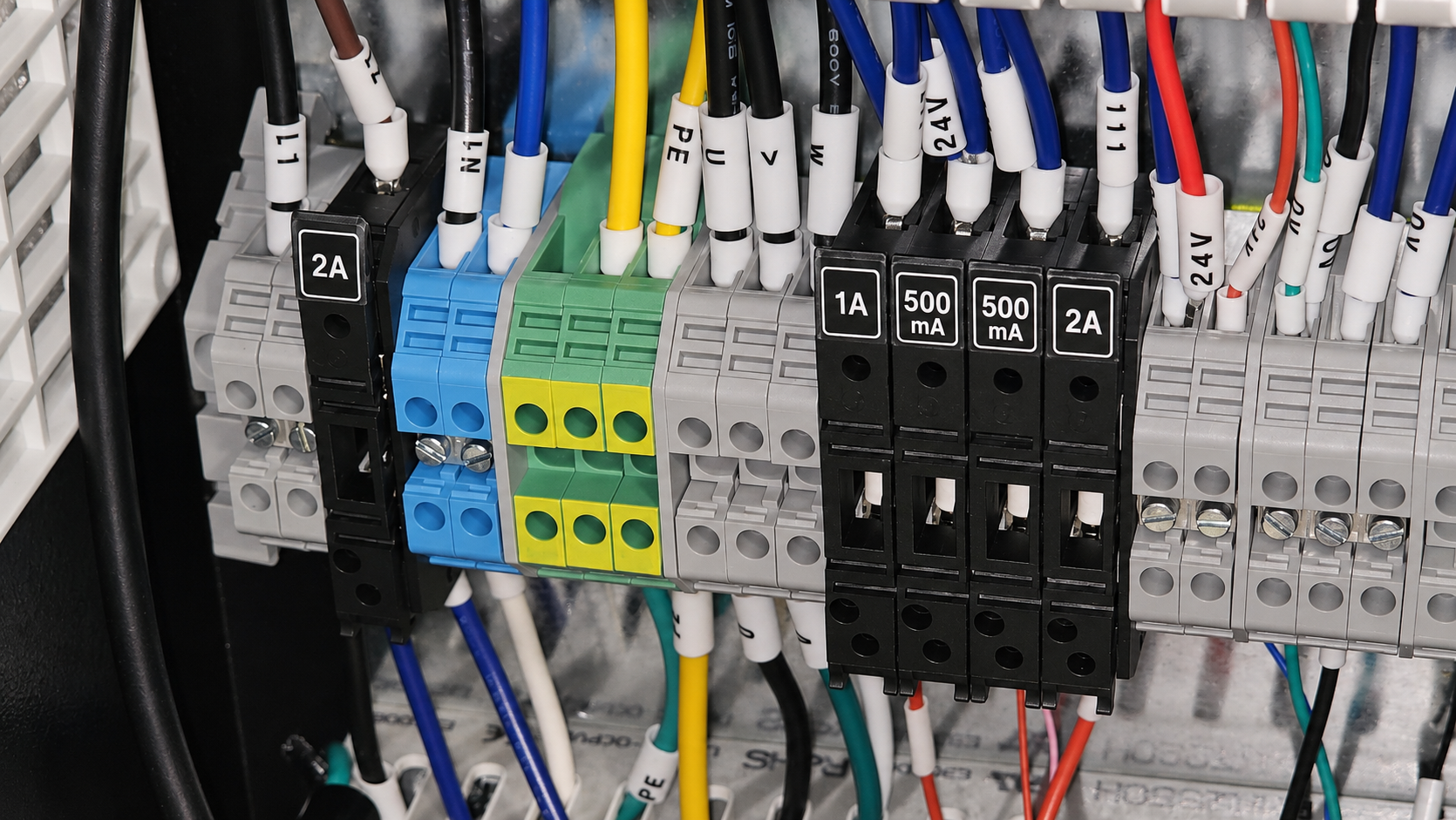
There are five fuse holders inside the electrical box. The leftmost fuse is separated from the remaining four by a group of terminal blocks. Reading left to right the order is:

G-700 Pro fuse holder locations — left to right: 2A, 1A, 500mA, 500mA, 2A
Left to right:   2A  ·  1A  ·  500mA  ·  500mA  ·  2A
Fuse Specifications

Fuse specifications are printed directly on the end cap of each ceramic fuse. Always verify you are installing the correct fuse type in each terminal location — mismatched fuses can cause premature failures or power issues. The amperage rating varies by circuit position.

Example fuse code breakdown
⌀ 5mm
F2AH250VP
F2AH250VP
Printed on end cap
20mm body
F Fast Acting
2A 2 Amp rated
H High Breaking Capacity
250V 250 Volt rating
5×20mm Fuse size
How to Test Fuses with a Multimeter
1
Remove the fuse from the holder
With the machine fully disconnected from power and VFD discharged, carefully remove the fuse from its terminal position.
2
Set the multimeter to continuity or resistance mode
Select the continuity mode (usually indicated by a speaker/beep icon) or resistance mode (Ω) on your multimeter.
3
Touch one probe to each end of the fuse
Place the red probe on one metal end cap and the black probe on the opposite end cap of the fuse.
Good fuse — continuity or very low resistance
The multimeter will beep or display a near-zero resistance reading. The fuse is intact and functioning.
Blown fuse — no continuity or open circuit
The multimeter will show no reading or display "OL" (overload/open). This fuse needs to be replaced with the correct type.
Video Walkthrough

The video below covers fuse locations, proper fuse identification, how to test each fuse, and correct replacement positions.

G-700 Pro Fuse Inspection & Replacement Video
Covers fuse locations · identification · testing · replacement
i

If after testing and replacing any blown fuses the issue persists, or if you are unsure about any step, please contact our support team and let us know what you found — we're happy to continue assisting.

Was this article helpful?

That’s Great!

Thank you for your feedback

Sorry! We couldn't be helpful

Thank you for your feedback

Let us know how can we improve this article!

Select at least one of the reasons
CAPTCHA verification is required.

Feedback sent

We appreciate your effort and will try to fix the article